
Cable Installation Progress Dashboard
Cable Installation
The Cable Installation allows multiple activity groups that may take place within a cable installation project to be tracked. The data is pulled from the workscope data from data entry module.
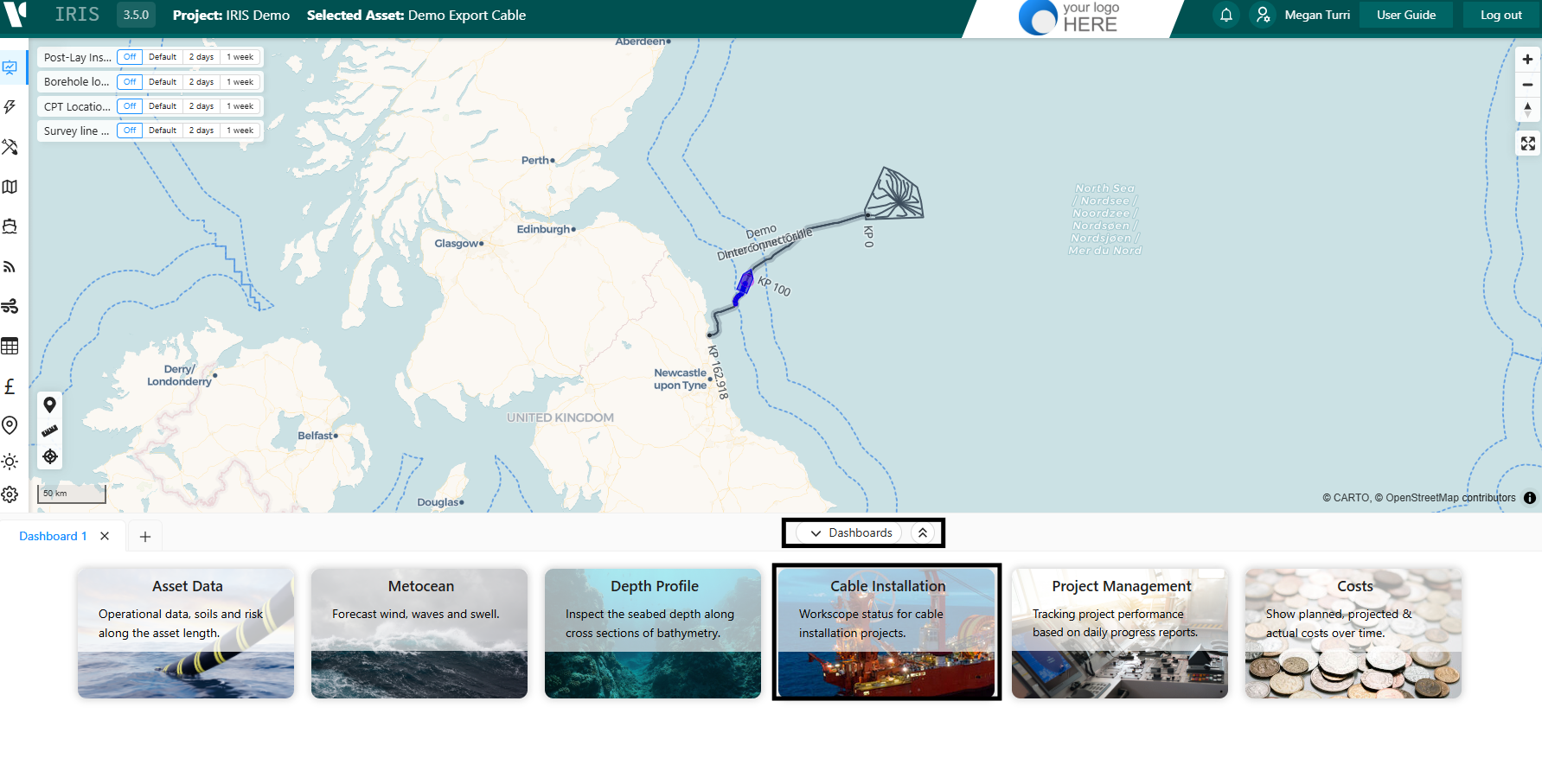
The dashboard can be accessed through the dashboard expander at the bottom of the screen and then selecting the fourth tab.
From the initial view, an asset and associated activity can be selected before a selection of progress bars are produced showing the activity across multiple categories of work that may be completed across the selected asset. The data can be collected across multiple activities within an activity group.
The Categories for the progress bars are:
- Jetting
- Post-Lay Inspection and Burial (PLIB)
- Pre-trenching Survey
- Backfill
- ROV Investigation
- Post-Trench Survey
- Mattress Install Post-Lay Survey
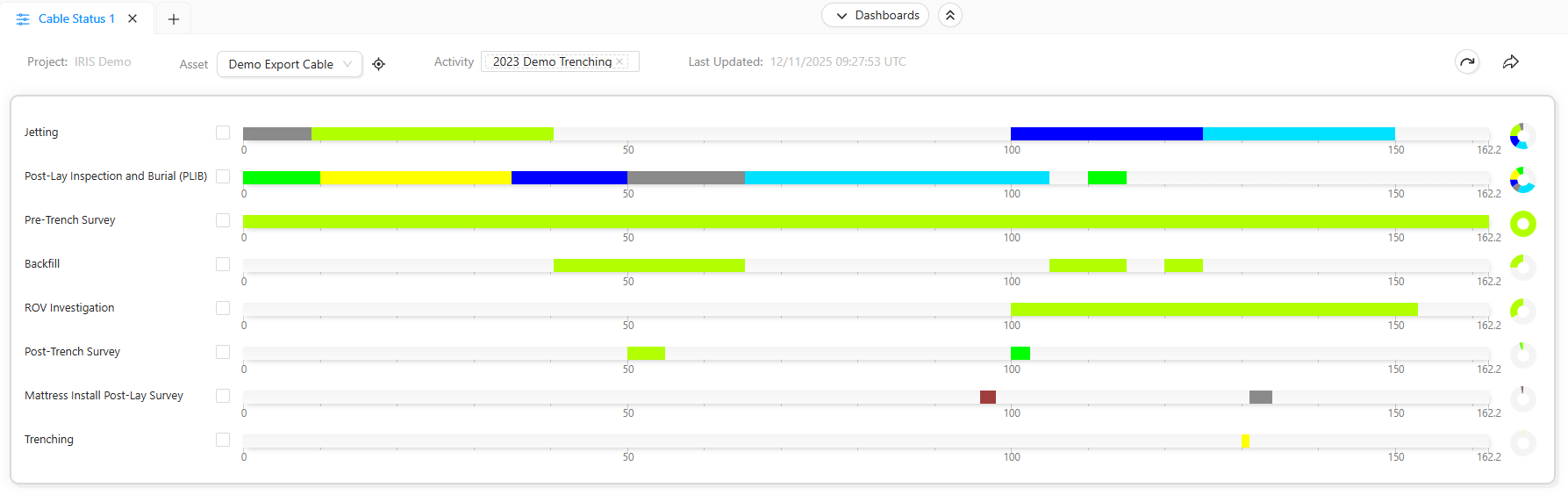
Each category is tracked against the KP range of the Selected asset, whether this be the entirety of the cable route or a small section. At the end of each progress bar is a progress pie chart which will show the percentage complete for the selected category.
By default the progress bars will run from 0 - max KP from left to right, however this may not follow the cable path and so it can be flipped by using the arrow symbol in the top right of the view. Next to this sits the export function which will allow a user to export both the chart or data in multiple formats.
Each category can be viewed on the map by selecting the tick box at the beginning of the progress bar. Additional information on each section can be viewed by hovering over sections of the progress bar. Any greyed out sections indicate where no data is present, whilst a light grey sections will indicate where an activity is planned but has not yet commenced. Any coloured section is a complete action however, may be confirmed or not confirmed. A red section will be for where a certain activity is not applicable.
When hovering over the progress bars the KP location will be highlighted within the map view through a red icon on the asset.